Transcripts · Chrome Extension · Playlists
How to Download All Transcripts from a YouTube Playlist or Channel with a Chrome Extension
Open a playlist or channel on YouTube, click Export all or pick the videos you want, and get every transcript in one zip. A step-by-step run on a 17-lecture MIT playlist: 17 transcripts, 18 credits, ready in under 5 seconds.
· 6 min read · YTAPI
Copying one YouTube transcript is easy: open the video, open the transcript, copy. For a playlist of 17 lectures, about 20 hours of video, that is 17 rounds of clicking, and for a whole channel it stops being practical at all.
This post shows how to get every transcript of a playlist or channel in one zip with our Chrome extension, straight from the YouTube page. We ran it on October 29, 2026, on MIT 9.13 The Human Brain, Spring 2019, a 17-video lecture playlist from MIT OpenCourseWare, and the screenshots and numbers below come from that run.
We make YTAPI and the extension, so read this with that in mind. If you'd like to compare it with other bulk tools first, see 5 ways to download every transcript from a channel.
What you need
- Google Chrome (or another browser that installs Chrome Web Store extensions and supports side panels).
- The extension. Install it from the Chrome Web Store and pin it to the toolbar.
- A free ytapi.dev account for bulk exports. New accounts get 200 credits. Single transcripts in the panel don't need an account.
Step 1: Open the playlist and the side panel
Open the playlist on YouTube, then click the extension's icon in the toolbar. The side panel opens next to the page and recognizes the playlist.
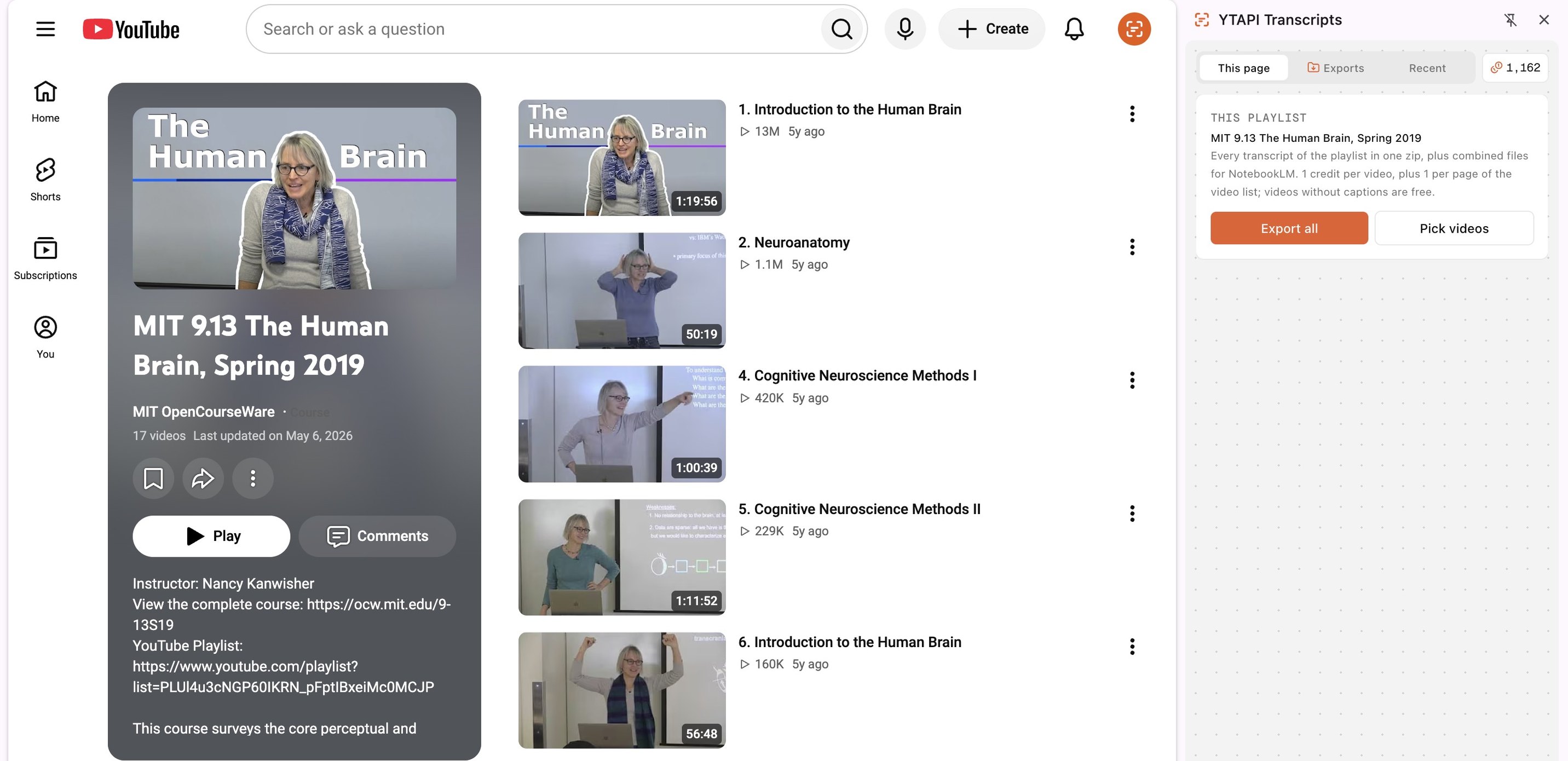
The same card shows up on a channel page, and on a video opened from a playlist. On a channel, the export covers all uploads (videos, Shorts and live replays). Open the channel's Videos, Shorts or Live tab first to export only that tab.
Step 2: Export all, or pick videos
Export all takes every video: the first 5,000 of a playlist in playlist order, or the newest 5,000 of a channel. Steps 3 and 4 follow this path.
Pick videos is for when you want only some of them. It shows the list with checkboxes: tick at least 2 videos, choose a format at the bottom and click Export N videos, which starts the export right away. Picked videos cost 1 credit each, with no charge for the list, so our four showed "up to 4 credits". For a single video, open it and copy the transcript from the panel for free.
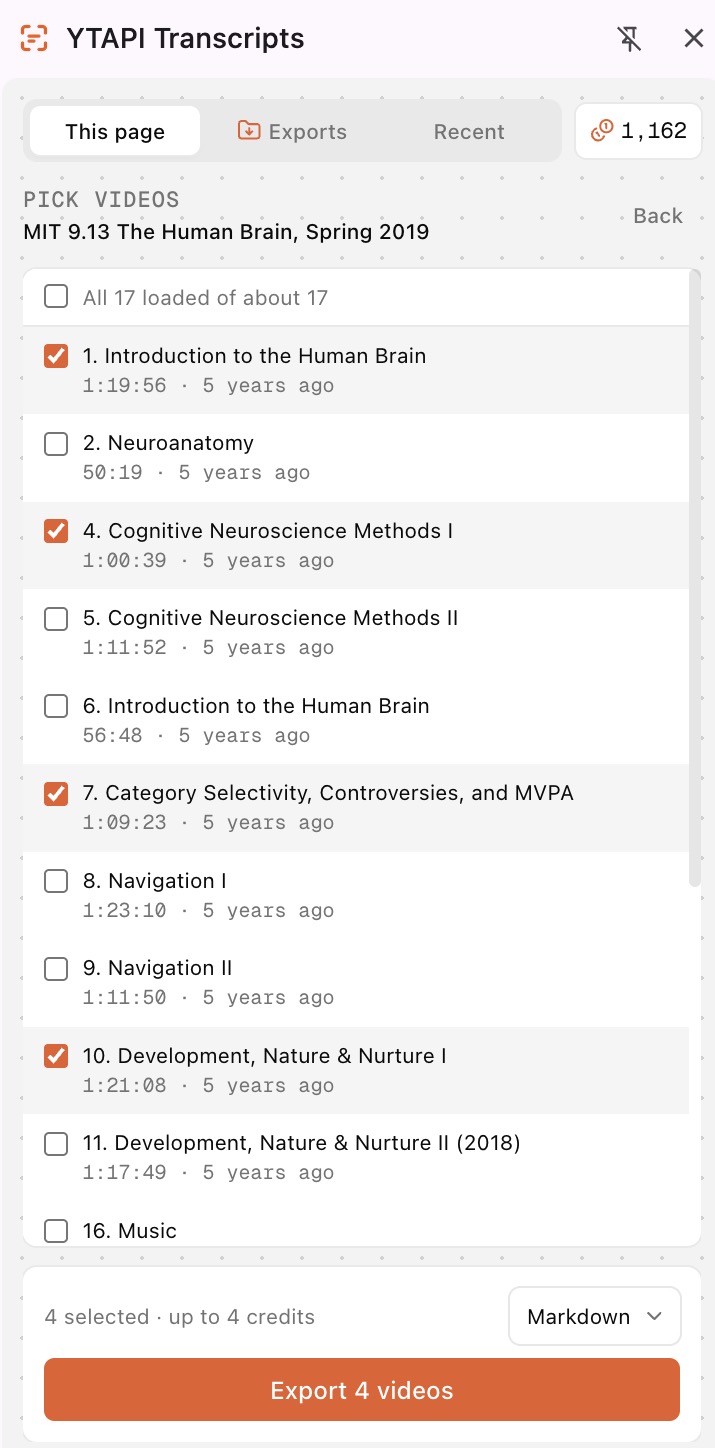
If you aren't signed in, the export button reads "Sign in to export" and opens ytapi.dev in a new tab. Sign in there, and the panel picks up the sign-in on its own.
Step 3: Choose a format and start
After Export all, the panel shows the playlist's size, how many videos to include, and a format:
- Markdown, with a
[m:ss]timestamp heading about every 30 seconds. Good for NotebookLM, ChatGPT or Claude. - Plain text, with no timestamps.
- SRT subtitles.
- JSON, with every caption line and its start time.
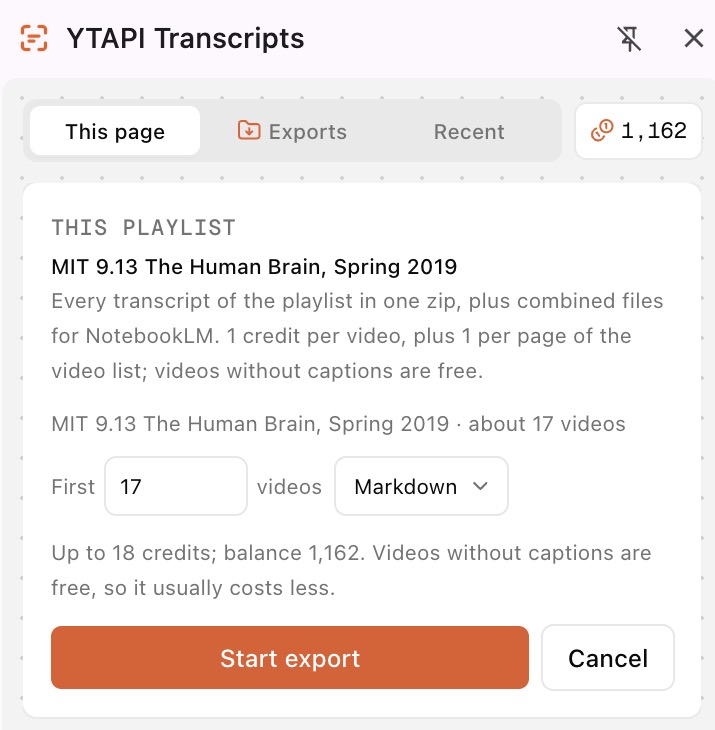
The line under the options is the most the export can cost: 1 credit per video plus 1 per page of the video list (100 videos per page). For our 17 videos that was "Up to 18 credits". Videos without captions, failed fetches and skipped videos are free, so you pay only for the transcripts you get, plus the list pages.
Step 4: Wait, or close the tab
Click Start export (with Pick videos, the export has already started). The export runs on our servers, not in your browser, so you can keep watching YouTube or close Chrome. The Exports tab in the panel shows each step (listing videos, fetching, packaging) and then a Download zip button.
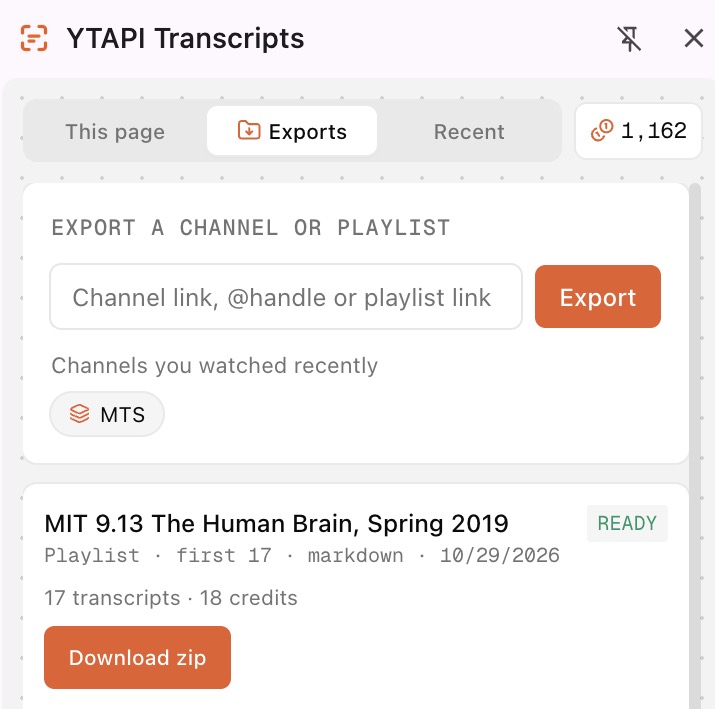
Our 17-video run took 4.5 seconds from start to ready. These are popular lectures, so some transcripts were probably already in our cache; a channel nobody has fetched before takes longer. Our 554-video export of a mostly uncached channel took 46 seconds. When it's done, we email you a download link that works for 7 days, and the zip can also be downloaded from the Exports tab or the dashboard.
Step 5: Open the zip
The zip, named MIT 9.13 The Human Brain, Spring 2019 - transcripts.zip, held 20 files (about 800 KB):
0001 1. Introduction to the Human Brain [ba-HMvDn_vU].md
0002 2. Neuroanatomy [bAkuNXtgrLA].md
0003 4. Cognitive Neuroscience Methods I [vFZY--lgmHs].md
...
0017 24. Attention and Awareness [B4a0WdGp52g].md
All transcripts.md
index.csv
README.txt- One file per video, numbered in playlist order, with the video ID in the name. The numbers inside the titles are MIT's lecture numbers.
All transcripts.mdputs every transcript in one file, each under its title and link. Drop it into NotebookLM or a Claude Project as a single source. Markdown and plain text exports get this file; SRT and JSON exports don't.index.csvlists every video with its URL, duration, caption language and astatus:ok,no_captions,failed, orskippedwhen the balance ran out.README.txtexplains the files.
Whole-channel exports put the files in videos/, shorts/ and live/ folders and write one combined file per type (All transcripts - videos.md and so on). A combined file over 450,000 words is split into numbered parts, to stay under NotebookLM's limit of 500,000 words per source.
What it cost
| MIT 9.13 run | Result |
|---|---|
| Videos in the playlist | 17 |
| Transcripts in the zip | 17 |
| Without captions (free) | 0 |
| Failed | 0 |
| Credits used | 18: 17 transcripts and 1 list page |
| Start to ready | 4.5 seconds |
The free 200 credits cover a playlist like this about eleven times. After that, credit packs start at $9 for 2,000, and credits don't expire.
Limits
- Captions only. The extension downloads the captions YouTube already has, uploaded or auto-generated. A video without captions has nothing to download; it is marked
no_captionsand not charged. - No date range. A playlist export takes the first videos in playlist order and a channel export the newest, up to 5,000 either way. There is no "from this date" filter.
- One export at a time. Start the next one when the current one is ready, or cancel it.
- Exports need an account and credits. The transcript panel for single videos stays free without one.
FAQ
Does it use my IP or slow down my browser?
Not for bulk exports. The panel sends the playlist link to our servers, which list the videos and fetch the transcripts. Your browser only shows progress. Single transcripts in the panel are loaded in your browser, directly from YouTube.
Can I export just the Shorts or live streams of a channel?
Yes. Open the channel's Shorts or Live tab before you click Export all, and only that tab is exported. Shorts are listed 48 to a page, so the list costs 1 credit per page of up to 48 Shorts.
Can I choose the caption language?
The extension takes each video's default captions, in the original spoken language when a video has several audio tracks. In the dashboard's export form you can ask for another caption language when videos have one.
Is there a way to do this from code?
Yes. The same exports run through the YTAPI API, and this guide shows how to list a channel and fetch its transcripts in batches.
Published October 30, 2026. Tested with extension version 1.0.3 on October 29, 2026.